

A client calls for the latest filing. Your assistant finds an attachment, but the attorney has a newer version. Meanwhile, someone has emailed a changed hearing date that hasn't reached the client. You don't just have a file-sharing problem. You have a communication workflow with no clear owner.
A law firm client portal can help, but only if staff maintain it as part of the matter workflow. The useful question isn't how much information you can publish. It's what clients need to know, who approves it, and who acts when they don't respond.
What a Portal Is and Why Adoption Lags
A law firm client portal is a password-protected online workspace where a firm shares matter status, approved files, secure messages, and invoices with each client. Think of a bank account page. The client signs in and sees their own records, not everyone else's.
Say a litigation client wants the filed answer. Instead of forwarding another attachment, the assistant releases the approved document within the correct matter. The client opens that version and sends any follow-up question in the same workspace. Attorneys, assistants, clients, and authorized outside collaborators work from a shared matter context.
That arrangement also suits family law and intellectual property practices. But a portal shouldn't expose the firm's entire internal workspace. Client visibility is a deliberate publication decision, not an automatic consequence of storing something.

Availability isn't active use
The ABA's 2022 Legal Technology Survey found that 33% of responding lawyers said their firms used a client portal to communicate with clients, while fewer than 25% of firms with fewer than 50 lawyers reported using a secure portal.
The ABA's 2023 Legal Technology Survey findings distinguish availability from behavior: 35% of respondents said their firms offered secure portal access, 12% regularly used one to communicate with clients, 24% used one occasionally, and 53% said their firms offered none; reported availability by firm size appears below.
Share of firms offering a secure client portal by size
| Firm size | Share offering a secure portal |
|---|---|
| Solo practices | 25% |
| 2–49 lawyers | About 31% |
| 50–99 lawyers | 41% |
| 100–499 lawyers | 50% |
| 500 or more lawyers | 66% |
Survey populations, questions, and definitions differ. Read these figures as adoption signals, not interchangeable measures or a single progression. The practical distinction is simpler: buying access doesn't establish a staff habit.
Email threads create competing copies. Phone updates leave the next person searching for context. Before adding another interface, fix naming, filing, and version ownership. Magnitude Marketing's guidance on how to reduce lost hours searching legal files is useful preparation for that underlying document work.
Start with two checks. List the last five client questions and mark which an accurate portal could have answered without a call. Then count how many active clients signed in last quarter. Those operational checks reveal whether you need better information, better onboarding, or both.
Portal Features at a Glance
Core portal components and staff duties
| Portal component | What the client sees | What staff must maintain |
|---|---|---|
| Matter status | Open matters, current stage and next date | Update the stage after each filing or event |
| Approved documents | Files the firm has released, with version and date | Approve each version before release |
| Secure messages | Threads tied to one matter | Name an owner and a reply target for each thread |
| Billing and payments | Invoices and payment links | Match balances to the accounting system |
| Activity history | Dated log of uploads, downloads and messages | Keep logs exportable on request |
| Document requests | Items the client still owes, with due dates | Track when the client acknowledges each request |
Maintain the information behind the screen
Matter status should explain what's happening in ordinary language. “Awaiting the court's decision” helps a client more than an unexplained internal status code. Assign the update to the person who processes the filing or event, rather than expecting someone to notice an outdated page later.
For approved documents, distinguish internal drafts from released versions. A filename containing “final” isn't an approval control. Use a release state that requires a staff member to approve the particular version before other authorized recipients can see it.
Messages need operational ownership. A shared inbox without an assigned responder invites everyone to assume someone else will answer. Set a reply target and a backup for absences.
Practical rule: Every client-facing component needs a named maintainer, not just a place on the menu.
Connect the portal to the source record
Billing requires a clear accounting source. If staff manually retype balances, they must reconcile corrections, payments, and credits before publishing them. Otherwise, clients may receive contradictory amounts from the portal and the billing team.
Activity history should distinguish an upload, a download, and a message. Don't treat a recorded download as proof that the client understood the document. Document requests need a separate acknowledgment and completion state, particularly when a client submits only part of what was requested.
These responsibilities belong within legal matter management, not in an isolated website maintenance task. The matter record should identify the responsible people and connect the relevant documents, dates, and requests.
Publish the update schedule and response expectations where clients can find them. A portal earns its keep when clients know what's current and staff know exactly what they must maintain.
Set Service Standards and Run One Matter
File sharing, messaging, and billing are easy to compare during procurement. They don't tell you who handles an unanswered request or what happens when the responsible attorney is away.
The 2025 Legal CX report, based on a survey of 433 law-firm clients, examined demand for on-demand client experiences. The operating response should be better visibility and clear responsibility, not indiscriminate publication of internal work.
Agree on the service rules
Set these rules before sending invitations:
- Visibility: Publish client dependencies, approved updates, and relevant court-date changes. Keep internal strategy and working calendar detail private.
- Replies: Give every matter a message owner, a backup, and an agreed reply target. Explain how clients should raise urgent issues.
- Milestones: Choose which approved filings, hearing changes, and document requests generate notifications.
- Escalation: Assign someone to monitor acknowledgment and completion. Define when an unanswered request reaches the responsible attorney.
Don't let automatic messages provide legal advice. A notification can direct a client to an approved update. An attorney should decide what that update means for the client.
Walk a contract dispute through the workflow
Consider a contract dispute in federal court. Run the pilot with a cooperative client and a matter team that can report problems candidly.
- Invite the client. Verify the intended recipient through an established contact channel before first sign-in. Don't rely solely on a newly supplied email address.
- Assign access. Identify the lead attorney, assistant, and client contact. Give each only the access their role requires.
- Request the first documents. Add a due date and explain why the contract, correspondence, or payment record matters.
- Review the upload. The client can see their submission receipt. The assistant checks the file and approves it before wider release within the workspace.
- Publish the filing update. After filing, post a short status summary. Send a notification that points to the authenticated workspace without sensitive details in the email body.
- Handle a changed court date. Update the approved matter information and explain any changed client dependency, including what's needed and by when.
- Follow through. Track acknowledgments separately from completed submissions. Escalate open requests after the agreed interval.
- Close deliberately. Complete the client handoff, revoke access under the closing procedure, apply retention rules, and export the activity record.
An unread notification isn't a completed client-service task.
During the pilot, record inbound status calls, unresolved messages, and missed client actions. Compare those observations with the team's prelaunch workflow. Don't declare success because invitations went out. Look for fewer manual chases without missed communication.
Put Deadlines in the Portal Without Errors
A client-facing date must come from a reviewed deadline record, not a simple calendar shortcut. Under Federal Rule of Civil Procedure 6(a), for periods stated in days or longer units, exclude the triggering day, count intermediate Saturdays, Sundays, and legal holidays, and extend a final day that falls on one of those days to the next eligible day.
That isn't the whole analysis. Confirm whether another rule, statute, or court order controls, and check applicable filing conditions before releasing the date.
Keep the calculation reviewable
Retain these items in the internal matter record:
- Authority: The governing rule or order and the applicable court.
- Trigger: The event and date that started the calculation.
- Result: The computed date, applicable adjustments, and reviewer approval.
Use the distinction between court days and calendar days when validating the calculation. Don't assume a familiar counting method applies across jurisdictions.
Separate monitoring from client instructions
Docket monitoring tells staff what the court entered. A client notice tells the client what to do. A new docket entry shouldn't automatically become an unreviewed instruction or a published deadline.
Document retrieval also needs an owner and a budget. PACER's pricing guidance states that electronic access costs $0.10 per page, generally capped at $3 per document or case-specific report, and explains that limiting a docket report by date range can reduce the displayed pages and charge.
Retrieve what the team needs, review it, and release the appropriate information. Don't make clients interpret raw docket entries to discover their obligations.
Get Clients to Log In and Stay Active
The invitation is a service interaction, not an administrative formality. Send a short guide that explains who sent it, what the client should expect, and how to get help. Use plain language and recognizable matter names rather than internal codes.
Keep the first task small: the relevant matter, a clear document request, and a direct login link. A crowded dashboard asks the client to learn your filing system before they can complete their own work.
Make the first visit manageable
Offer a phone or email fallback for clients who get stuck. Record the support issue against the matter, including whether the problem involved an expired invitation, account recovery, navigation, or uploading.
- Show the actual path: Use instructions that match the current sign-in screen.
- Test practical access: Check the experience on a phone and with assistive tools.
- Use a real pilot: With the client's consent, observe the first attempt without asking them to reveal credentials.
Don't weaken identity checks to make onboarding faster. Instead, remove confusing instructions and unnecessary navigation.
Respond to inactivity
If the client hasn't signed in after the first notice, send a reminder, then notify the responsible attorney. That attorney should decide whether the client needs help, a different communication method, or direct contact about an approaching obligation.
Track logins by matter, but interpret them carefully. A frequent login doesn't prove that documents were understood. No login may mean the client can't access the account, not that they're ignoring the firm.
Keep the fallback channel available. The client's ability to participate matters more than your preferred interface.
Use plain-language status summaries for clients who avoid technology. And when a client reports trouble, fix the access problem before sending more automated reminders.
How Secure Access Works and What to Confirm Before Signing
Encrypting files in transit isn't enough. A portal also needs reliable authentication, matter-specific authorization, and records that let the firm investigate activity. Security depends on what happens after someone reaches the sign-in page.
NIST's digital identity guidance explains authentication through proof of control of an authenticator associated with an account. Apply that principle alongside authorization and lifecycle controls. A valid credential shouldn't provide unrestricted access to client information.
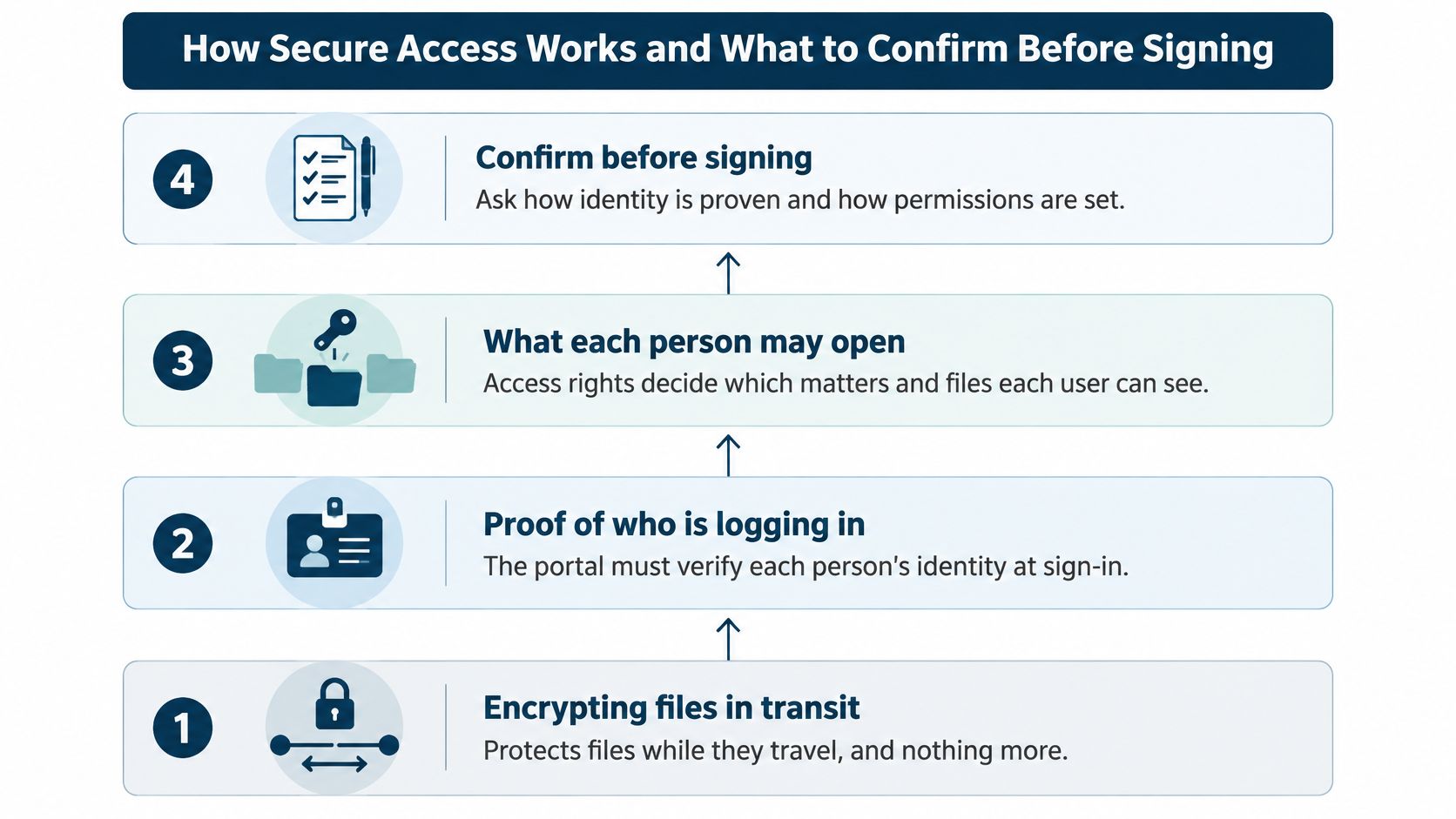
Test the control layers
Identity lifecycle covers invitation verification, account recovery, role changes, and removal. Test whether a removed contact loses access promptly, including through an already open session. Recovery must not become an easier route around normal sign-in controls.
Session authentication should support multifactor sign-in, with phishing-resistant methods where the risk warrants them. Confirm session expiration and recovery behavior, not just the presence of an authentication option.
Matter authorization must check role and matter membership for every document or message request. Test direct access to a file address as well as navigation through menus. A hidden button isn't an access control.
Activity logging should capture actor, time, object, action, result, and source context. The firm should be able to reconstruct who opened, changed, shared, or deleted a file and whether their access was appropriate.
Bring a test script to the demo
Use a role-based access control example to define realistic attorney, assistant, client, and restricted-user scenarios. Then test them:
- Visibility: Confirm matter restrictions and ethical walls.
- Logs: Export activity records in a usable format.
- Administration: Check separation between administrative privileges and matter-user access.
- Configuration: Examine retention settings and session timeouts.
- Revocation: Remove a test user and attempt access again.
- Service rules: Demonstrate reply targets, milestone notifications, and escalation behavior.
At MatterAlert, we synchronize with in-house ethical walls, automatically restrict new matters to approved users, and honor workspace-level and document-level permissions through role-based access controls. We also support external contacts as event attendees with automatic invitations and reminders, alongside a dedicated client portal for external visibility.
Take the test script to a small vendor shortlist, including our team if the platform fits your workflow. Use a controlled live-matter pilot with client access disabled until authorization and information-release checks pass. Don't accept a polished demonstration as proof that your own permission boundaries work.
MatterAlert offers a dedicated client portal alongside matter, deadline, and calendar coordination, with external attendee invitations and reminders. Visit MatterAlert to book a personalized demo and bring a representative matter, your access roles, and your client-service rules to test the workflow.