

It's 4:40 on a Friday. A client emails to ask whether the response brief got filed, and the answer lives in three places: a paralegal's inbox, a folder on the shared drive, and a docket notice nobody forwarded. Someone spends twenty minutes reconstructing a timeline that should have taken twenty seconds to read.
A client portal app fixes that, but only if you treat it as a communication channel with rules about who answers what. Treat it as a file cabinet with a login screen and you've just moved the same confusion behind a password.
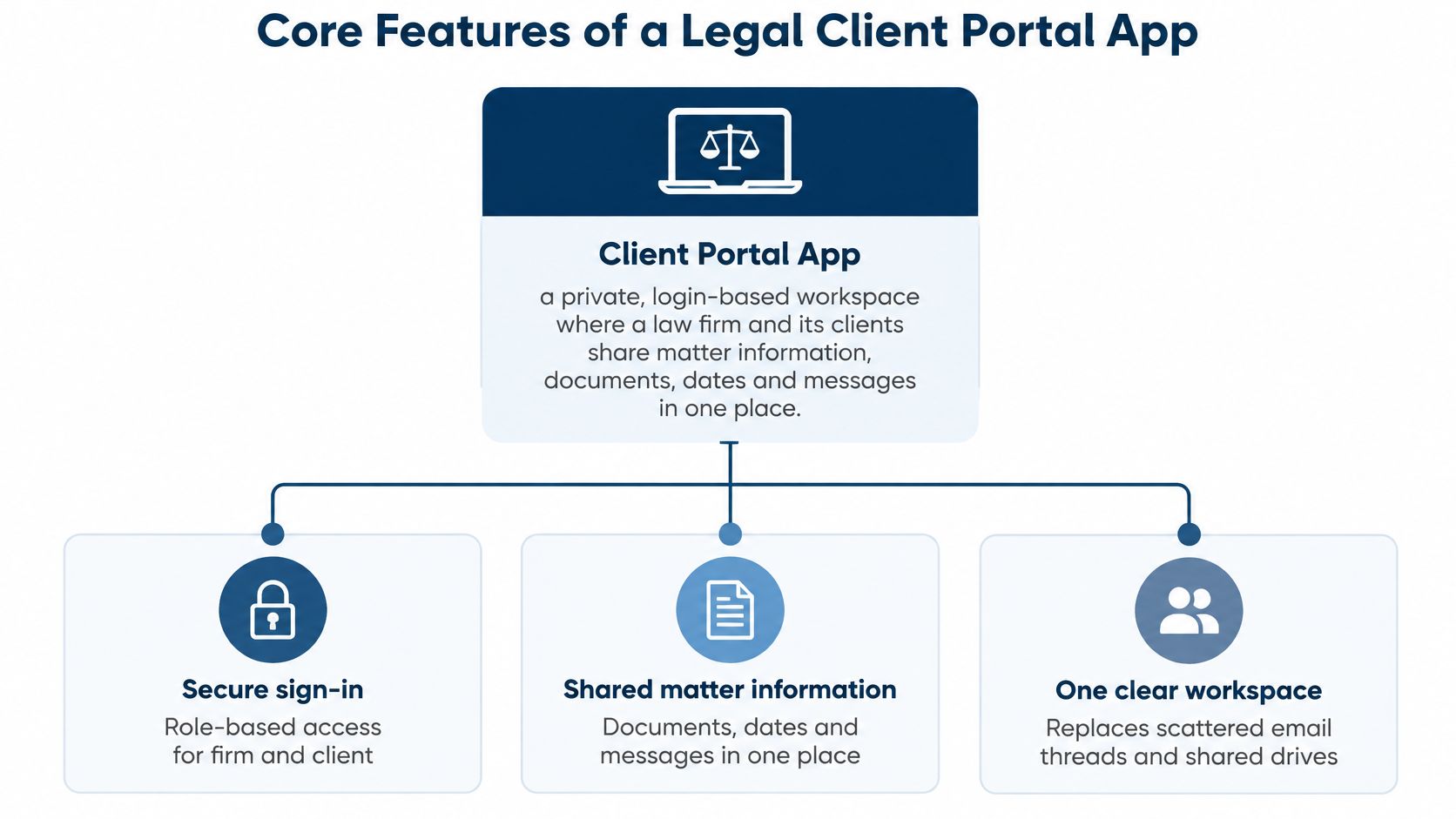
Core Features of a Legal Client Portal App
A client portal app is a private, login-based workspace where a law firm and its clients share matter information, documents, dates and messages in one place. Think of a locked filing room. Only the right people get a key, and the firm decides what goes on each shelf.
That second part matters more than the lock. A client who can see everything your team sees will read internal notes they were never meant to read. A client who sees nothing useful will keep calling.
What the client sees and what the firm controls
Every feature has two sides. The client view is what you publish. The firm control is what you decide before publishing.
| Feature | What the client sees | What the firm controls |
|---|---|---|
| Secure document exchange | Files shared for their matter | Permissions per document, download logs |
| Matter status updates | Milestones and next steps | Which updates are published and when |
| Deadline and event visibility | Dates that affect their case | Rule-based dates and who can add events |
| Secure messaging | Replies from the assigned team | Routing to an attorney and response times |
| Task requests and forms | Items to upload or sign | Task owner, due date and completion tracking |
Our Matter Dashboard pulls client info, jurisdiction, events, tasks, key dates, documents and timelines into one view, connected to accounting and document management. The client portal then exposes a controlled slice of that record to external contacts. We also let you add outside contacts as event attendees, with automatic invites and reminders, so a client sees a hearing date without holding a license.
Where document exchange gets complicated
Contracts are the usual trouble spot. A redline circulated by email loses its version history the moment someone replies with an attachment renamed "final_v3." If contract review is a regular part of your matters, LiveDocument's page on tracked links for contract review is a useful reference for how sharing and review tracking can work together.
Practical rule: if you can't name the person who decides whether a document becomes client-visible, you don't have a permission model. You have a habit.
Use the table as a checklist in every vendor demo. Ask the sales engineer to show the firm-side control for each row, not just the client screen. Vendors demo the pretty view. The control column is where the work lives.
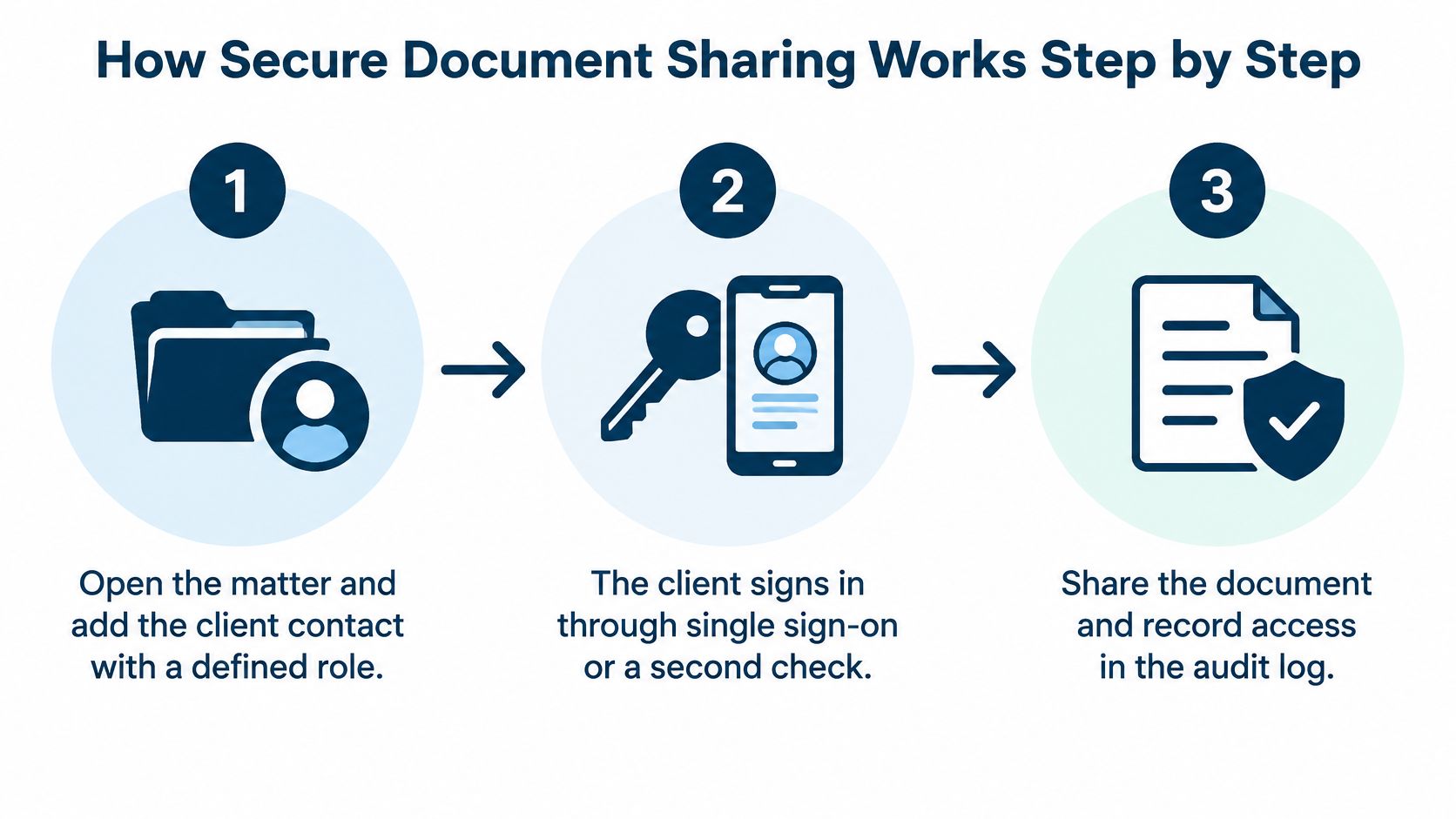
How Secure Document Sharing Works Step by Step
Sharing a file safely is a sequence, not a setting. Each step below has a reason and a common slip.
The six steps
- Open the matter and add the client contact with a defined role. The role decides what that person can reach before they ever click anything. The slip is adding a client as a generic "external user" and planning to fix permissions later.
- Require a second check at sign-in. Single sign-on or a second factor means a stolen password alone doesn't open the file room. NIST's authentication and lifecycle management guidelines define Authenticator Assurance Level 2 (AAL2) as proof of possession and control of two distinct authentication factors, which is the target for a portal holding privileged communications and pleadings. A password plus a FIDO2 security key or authenticator app meets it. SMS alone doesn't, and NIST points to verifier-impersonation-resistant cryptographic authentication as the stronger design.
- Set permissions at two levels, workspace and document. A client should reach only the folder or file their matter allows. The slip is inheritance: a new subfolder picks up permissions nobody reviewed.
- Log the upload or download. You want a record of who pulled what and when, because that record is the first thing anyone asks for after an incident. Step-up authentication for sensitive actions, such as bulk downloads or permission changes, belongs here too.
- Let ethical walls restrict new matters automatically. A conflicted staff member shouldn't be able to stumble into a file. We synchronize with in-house ethical walls so new matters auto-restrict to approved users, and we honor both workspace-level and document-level permissions with role-based access controls.
- Review access when the matter closes or someone leaves. This is the step firms skip. A share link that stays live after closing is still a share link.
Who can change the rules
Role-based access has to govern who edits permissions, not only who views files. If a paralegal can widen access to a workspace, your permission model is only as careful as your busiest assistant. Our guide to law document management software covers how folder structure and matter records stay aligned as files move.
Test this with two dummy client accounts before launch. Sign in as one, paste the other's document URL into the browser, and confirm it's blocked. Hiding a link on a page protects nothing.
Audit logs should show every change at the event and matter levels, including permission edits. If your vendor can't produce that log in a readable export, keep looking.
Matter Updates and Deadline Visibility
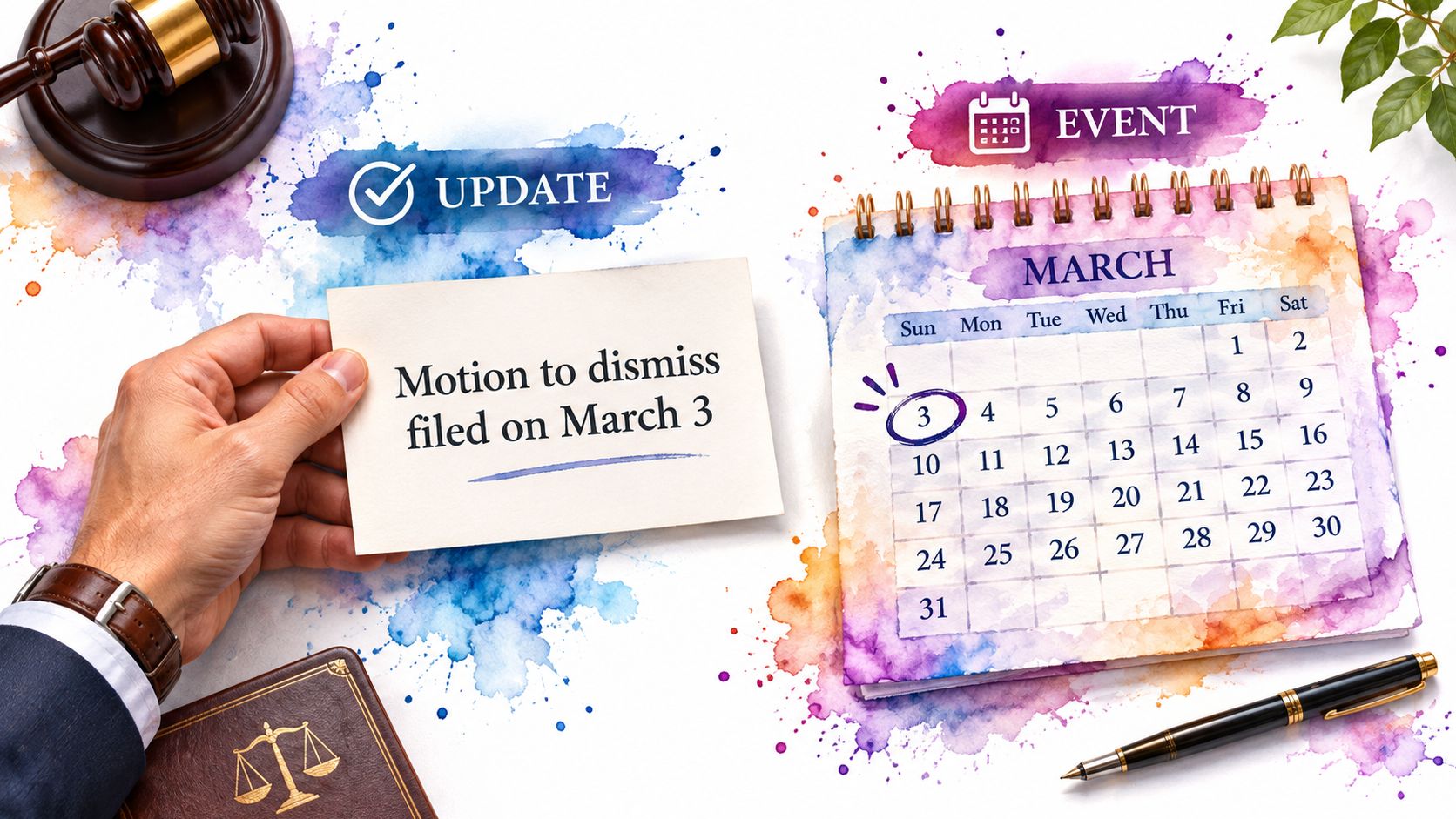
A client portal should show two things clearly: what happened and what needs attention next. Those are different records. A status note tells the client that a motion was filed. A calendar event tells them a hearing or response date is approaching. When a portal mixes the two, clients can mistake background activity for action required from them.
Write updates a client can act on
Use short sentences, plain verbs, and a clear next step. “Response brief filed. Nothing needed from you.” Or: “Signed affidavit needed by Thursday. Upload it under Tasks.” That second update gives the client a date, a document, and a place to act.
Keep internal notes and client-facing updates consistent, but do not make them identical. Your case management notes template can capture the internal reasoning, while the portal should strip out anything that creates confusion or exposes work product. Before inviting clients in, review a sample update with two tests in mind: can the client tell whether action is required, and can they tell where to take it?
Why one deadline formula fails
Deadline visibility depends on counting rules, and those rules vary by court and proceeding. Federal Rule of Civil Procedure 6, as published in the Northern District of Illinois rule text, excludes the day of the triggering event, includes the last day, and moves the deadline to the next day that is not a Saturday, Sunday, or legal holiday when the final day lands on one.
Appellate practice counts differently. Under Federal Rule of Appellate Procedure 26, set out by the Second Circuit clerk's office, the triggering day is excluded, while every intermediate day is counted, including weekends and holidays. The period extends past a weekend or holiday only when the final day falls on one.
Same trigger date, two possible answers. That is why a rule-based calculator matters more than a manual calendar formula.
A docket notice tells you something happened. It doesn't tell you the deadline is right until a person confirms it.
MatterAlert retrieves court notices automatically, sends email alerts on new dockets, and allows document downloads. The attorney still verifies the calculated date before it reaches the client view. Calendar and detailed list views support sorting, filtering, and searching by matter, tags, assignees, dates, and metadata, with color coding by status, type, or user. Use that review workflow to check three things before publication: the source of the trigger date, the rule set applied, and whether the client-facing event says what the client must do.
For portal deadlines, I would also test the notification path, not just the date. MatterAlert notifications can be customized per user and per matter, so confirm that the responsible attorney, assisting staff, and client contact receive the right level of notice. A correct date that reaches the wrong people is still a visibility failure.
Client Messages and When to Escalate to a Person
A client portal changes the message thread from an inbox into a controlled channel. That only works when the firm defines what the channel is for, who answers, and when a person needs to take over.
Only 14% of customers fully resolved their issue through self-service, according to Gartner research cited in 2024 covering 5,728 customers, as summarized in this client portal adoption statistics roundup. In the same research, 73% used self-service at some point during a service journey and 45% felt the organization didn't understand their need.
Those figures point to a practical limit. Clients will use the portal to check status, retrieve documents, and send routine questions. They will still need a person when the message turns on judgment, urgency, or a changed fact.
Channel choice should follow the stage of the matter. Early conversations often need a higher-touch explanation. Progress updates can move through the portal when they are specific, short, and tied to a named matter event. Legal advice, disputed facts, settlement decisions, and court date changes belong with the responsible lawyer.
MatterAlert supports that split by giving clients a dedicated portal for external visibility and allowing external contacts to be included as event attendees with automatic invites and reminders. The useful test is simple: can a client see enough to avoid a routine status email, and can they reach the right person when the answer affects a decision?
Escalation rules you can adopt this month
- Set response times by message type. Routine questions within one business day. Anything touching a deadline, same day. Publish those expectations inside the portal so silence doesn't read as neglect.
- Name one contact and one backup. Reassignment and vacation are the two reasons clients get stranded. A named backup means a message never sits in an unwatched queue.
- Route judgment to the attorney. Any message involving legal advice, urgency or a changed court date goes to the assigned lawyer, not to a general inbox.
- Offer a call for high-stakes decisions. Settlement terms, plea decisions, whether to testify. Put a phone or video option in the portal itself, so choosing a human doesn't depend on knowing the right private number.
- Tune notifications per user and per matter. MatterAlert notifications can be customized per user and per matter. That lets a legal assistant receive task and calendar alerts while a client receives only the updates tied to their matter.
- Use multi-channel alerts for time-sensitive messages. MatterAlert provides multi-channel notifications to reduce the chance that someone misses a critical date. Test whether a client, assistant, and attorney each receive the alert they need without duplicate noise.
A portal that treats every message the same creates two failure modes. Low-value notices train clients to ignore the channel. High-value messages get buried among them. Per-user and per-matter controls, named owners, and clear escalation triggers keep the channel usable.
Measure resolution, not traffic
Logins and page views tell you people are checking. They do not tell you whether the matter moved forward. Track completed client requests, documents exchanged without a follow-up question, messages resolved without a second reply, and forms submitted. Those numbers describe work that finished.
Run a short test before inviting clients. Send a sample progress message, a document request, and a deadline-sensitive question through the portal. Confirm who receives each one, how quickly it appears, and whether the escalation path reaches a named person. If the firm cannot answer those three questions internally, clients will discover the gap first.
Maximum digitization can reduce client satisfaction when it removes choice. Keep the phone number visible.
Readiness Checks for Security and Accessibility
In a 2025 survey of 750 U.S. law-firm clients, 39% said they'd consider leaving a firm after a data breach, and 69% considered secure portals extremely or very important, according to the 2025 law firm cybersecurity report. Security is a retention issue, not an IT ticket.
The same report cites a 2025 Proton survey of 500 U.S. firms in which one in five had been targeted by a cyberattack in the prior year and 65% were unfamiliar with their legal obligations around breach response. That second figure is the one to sit with. Most firms have a tool. Fewer have a rehearsed plan.
Portal readiness checks before client launch
| Readiness check | What to verify | Why it matters |
|---|---|---|
| Download and share logs | Each download and share is recorded and searchable | Supports breach review |
| Lost device or compromised account | Written steps to revoke access and reset sessions | Speeds containment |
| Audit records | Event and matter changes are kept and searchable | Shows what changed and when |
| Keyboard and screen reader use | Focus stays visible, labels are clear, errors are readable | Reduces failed sign-ins and uploads |
| Accessible authentication | Sign-in doesn't depend on memory tests or puzzles | Keeps clients from getting locked out |
| Breach notice rehearsal | Team practices the client notice workflow | Clients expect a fast, clear message |
We log every change at event and matter levels for audit, with reports by timekeeper, matter, client or office, custom report formats and dashboard analytics. Single sign-on through Microsoft 365 with automatic user provisioning from Azure AD removes the orphaned account problem, because access follows your directory instead of a spreadsheet. Our role-based access control example walks through how those roles map to real firm positions.
Accessibility is a test, not a claim
WCAG 2.2 adds criteria that hit portal workflows directly. Focus Not Obscured at Level AA means a sticky header or dialog can't hide the field someone is typing in. Consistent Help keeps the support link in the same place. Redundant Entry stops a multi-step upload form from asking for the same client details twice. Accessible Authentication at Level AA means sign-in can't hinge on a memory test or a puzzle.
Run an automated scan, then put the mouse away. Test sign-in, matter search, upload and acknowledgment by keyboard only, then repeat with a screen reader. Check that error messages are announced, not just colored red. A scanner finds missing alt text. It won't tell you a client can't finish uploading an affidavit.
Repeat these checks after every configuration change. A portal is secure on the day you test it.
A Portal Workflow in a Real Matter
Say a mid-size litigation group opens a new commercial dispute on a Monday in March. The intake attorney builds the matter from a litigation template, which generates the standard tasks, events and document placeholders at once. Our setup works this way: customizable templates create the matter, CalendarRules generates the calendar events, UniCourt and PACER track the dockets, and everything syncs to Outlook within one minute.

What happens next
The docketing clerk enters the trigger date from the service affidavit. The system calculates the response deadline under the applicable rule set and puts the event on the assigned attorney's calendar. Nobody counts days on a wall calendar.
The client gets a portal update and an email alert on Tuesday: answer due, nothing needed yet. That's the portal working alone, and it should. No staff member typed that message twice.
Three weeks later the court moves a hearing. The new date syncs to the internal calendar and the client view, and the client's Outlook invite updates with it. The client messages the portal that afternoon: "Do I have to be there in person?"
The moment that needed a person
The assigned paralegal reads it and routes it to the attorney, because attendance affects strategy and the client is anxious about it. The attorney calls that evening. Ten minutes on the phone settles what four portal messages would have complicated.
Then the paralegal gives notice. On her last Friday, the operations lead bulk-reassigns her open tasks and events across matters to a colleague. We support assignment to whole teams or departments and bulk reassignment when staff change, with every change auto-syncing to subscriber calendars. The client's contact name updates in the portal, and the hearing date on their phone stays correct.
The portal handled the date. A person handled the decision. That split is the whole design.
Outcome for the client: one place to check, one named contact throughout, no gap during a staff departure. Outcome for the firm: no orphaned tasks, no duplicate data entry, and a defensible record of who saw what.
Confirm These Requirements Before You Choose a Portal
Take this list into the demo and make the vendor show you each item working, not described on a slide.
- Sign-in: single sign-on plus a second factor for sensitive actions like downloads and permission changes.
- Permissions: matter-level and document-level control, with roles that govern who can change access.
- Deadline rules: coverage for the courts you practice in, including state courts and Canadian jurisdictions if your matters cross the border. Ask which rule sets are maintained and how updates reach your matters.
- Messaging: named contacts, backup owners and written response times.
- Accessibility: keyboard and screen-reader testing against WCAG 2.2 Level AA, with results you can read.
- Audit and export: logs and a working data export process before the first client logs in, not after you decide to leave.
- Implementation and support: the timeline, the training plan and the support terms in writing.
On the last point, our implementation typically runs four to six weeks covering integration configuration, data conversion, validation, training and pilot rollout, with a dedicated project manager and 90 days of enhanced post-launch support. MatterAlert's core platform is $15–$45 per user per month plus optional add-ons, with a minimum one-year term billed annually or monthly. Ask every other vendor for per-user pricing in writing, including add-on fees and minimum term, because published ranges shift and only a written quote binds anyone.
Don't sign on a demo alone. Run a trial against one real matter with real dates and two dummy client accounts, and see whether the permissions hold and the deadlines match your manual calculation.
This week, pick one live matter, run the readiness table against it, and invite a small pilot group of clients. Fix what trips them up before you migrate the rest of the book.
We built MatterAlert to keep court deadlines, matter tasks, documents and client visibility in one web-based workspace, with rule-based calendaring, ethical walls, document-level permissions and a client portal that shows external contacts only what you approve. If you're weighing a portal for a multi-jurisdiction litigation practice, book a personalized demo and bring one live matter to test against. Visit MatterAlert to see the Matter Dashboard and client portal side by side.