

In 2025, 80% of law firms in the International Legal Technology Association survey were using or exploring generative AI, across nearly 600 firms worldwide, according to Law360's report on that survey. Full deployment is still rare. That gap is the key story of technology in the law office. Tools are easy to buy. Ownership of the data, ownership of the deadline, and a control that catches a mistake are harder.
A senior operations review starts with those three questions, not a product catalog. Who holds the record. Who is on the hook if a date slips. Which check stops a bad entry before it reaches a judge or a client.
The Core Technology Every Law Office Runs
A law office runs six technology areas, and each one carries a different kind of risk. The American Bar Association's 2024 Legal Technology Survey Report found that 73% of law firms use cloud-based legal tools, with document-management and practice-management applications among the most widely adopted categories. Cloud access is standard now. It is not a side project.
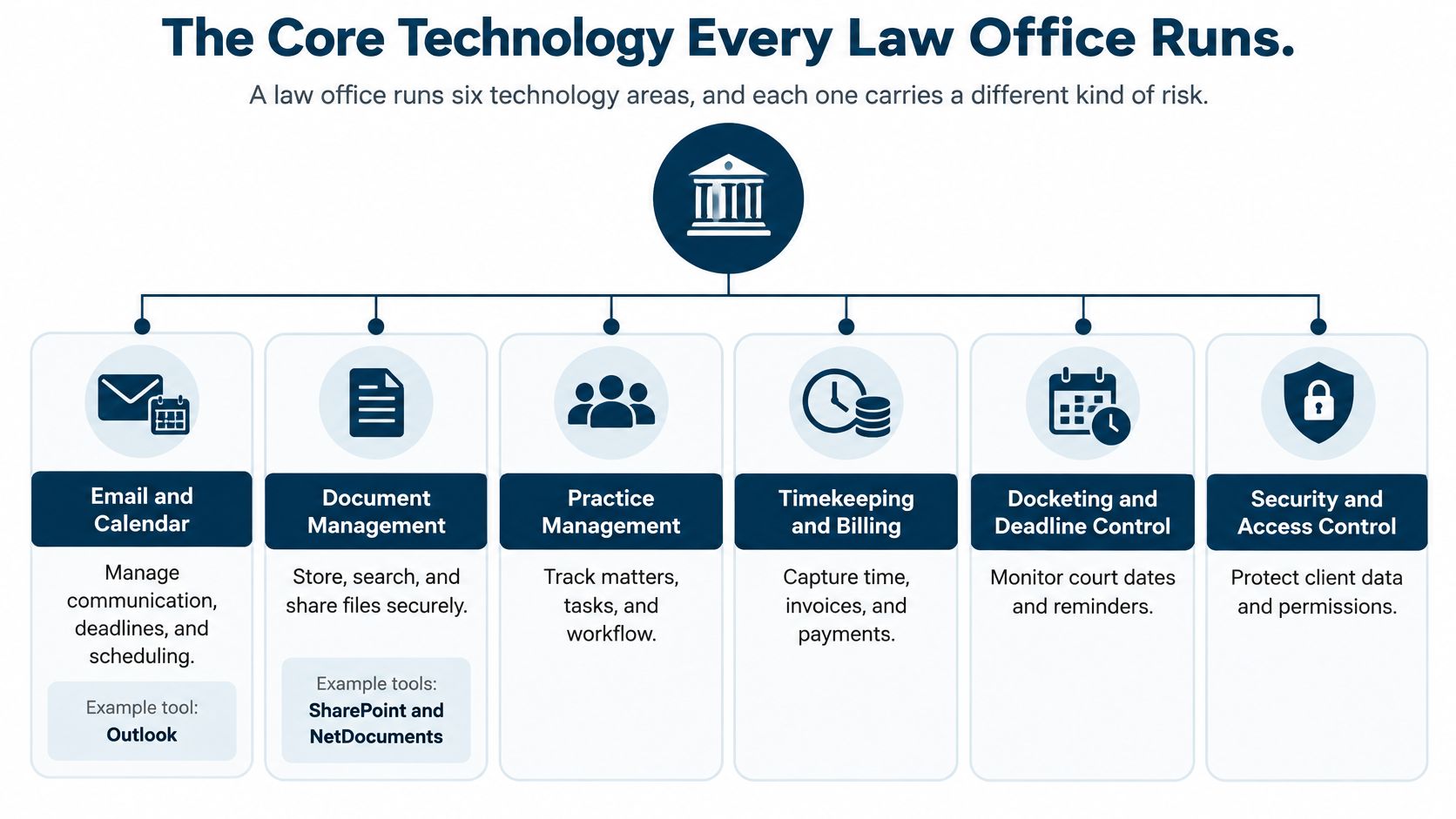
| Functional area | Typical tools | What it handles | Main risk |
|---|---|---|---|
| Matter management | Matter platforms, docketing systems, practice management software | Matters, deadlines, tasks, reporting | Missed dates kept in personal calendars |
| Calendar and communication | Outlook, Microsoft 365, Teams, email | Attorney and staff calendars, reminders, client email | Calendars that drift away from court dates |
| Document management | iManage, NetDocuments | Storage, versions, workspace permissions | Loose copies and wrong versions outside the system |
| Legal research | Lexis+, Westlaw, Practical Law | Case law, statutes, secondary sources | Unverified answers taken as final |
| Billing and accounting | Elite 3E, Aderant | Time entries, invoices, matter accounts | Unrecorded or delayed billable time |
| Security | Multifactor authentication, encryption, audit logs | Access control, backup, incident response | Phishing, ransomware, and stale access rights |
The areas overlap because one matter is not one system. A litigation file opened on Monday needs a court date in Outlook, the filed brief in iManage or NetDocuments, and time entries for Elite 3E or Aderant. Email in Microsoft 365 and Teams carries the client instructions that started the work. Research in Lexis+ or Westlaw supports the brief. If any copy lives only on a laptop, the team is already split.
Matter platforms can pull the matter record, deadlines, and tasks into one view while the document system still holds the files. Legal case management software is useful only when that split is deliberate. The document system owns versions. The matter record owns dates and assignments. Security controls for access, backup, and incidents belong in the security program, not as a second copy of this map.
Before you buy or swap anything, mark your firm against the table. Name the system of record for each row, and name the person who fixes a bad entry. Teams that want a plain view of where automation helps, and where it creates a second unofficial file, can explore AI in law firm workflows as a checklist, not a shopping list.
How Matter Software Calculates Court Deadlines
A calendar entry is not a deadline calculation. Say a 21-day period is triggered on Monday, March 3. Under the federal counting method, March 3 is out. Day 1 is Tuesday, March 4. Day 21 lands on Monday, March 24. If day 21 had landed on a Saturday, the deadline would roll to the following Monday, unless that Monday is a legal holiday.
Federal Rule of Civil Procedure 6(a)(1), as published by the U.S. Court of International Trade, excludes the triggering day, counts every following day including Saturdays, Sundays, and legal holidays, and includes the final day. If that final day is a Saturday, Sunday, or legal holiday, the deadline moves to the end of the next day that is not one of those days.
Why the rule is easy to misapply
Hour-based periods work differently. They begin the moment the triggering event occurs. Every hour counts, including hours on weekends and holidays. If the final hour ends on a non-business day, the deadline moves to the same clock time on the next qualifying day. A docket clerk who records only the date, and drops the time, has already lost the calculation.
Federal legal holidays named in the rule include New Year's Day, Memorial Day, Juneteenth, Independence Day, Thanksgiving, and Christmas. The rule also covers holidays declared by Congress or the President, plus certain state holidays when the period is measured after an event and the district sits in that state.
| Rule element | What the rule requires | Docketing check |
|---|---|---|
| Trigger day | Excluded from the count | Confirm the first counted day is the next calendar day |
| Calendar days | Every day counts, including weekends and holidays | Do not switch to business-day counting |
| Final day on a non-business day | Deadline moves to the next day that is not a weekend or legal holiday | Check the final date against the holiday list |
| Hour-based periods | Start at the triggering event and count every hour | Record the exact trigger time, not only the date |
| Federal legal holidays | Includes New Year's Day, Memorial Day, Juneteenth, Independence Day, Thanksgiving, and Christmas, plus other federal holidays and days declared by Congress or the President | Update the holiday calendar each year |
| State holidays after an event | Apply to periods measured after an event, based on the state where the district court sits | Check the state holiday list for each court |
Rule-based calendaring can build dates from a trigger and revise events when a court changes its rules. We connect deadline calculation to more than 2,200 court rule sets, with weekend and holiday adjustments, and events update when a court updates its rules. That still does not cover every state rule or local rule. The docketing team has to check those sets on their own.
Practical rule: A second person confirms each calculated date against the rule text before it reaches an attorney.
I would not let the lawyer who argued the motion be the only person who checks the date. The second reader should be a docketing clerk or a trained assistant, working from the rule, not from memory.
Keeping Attorney and Staff Calendars in Sync
A deadline often lives in three places at once. The attorney has it in Outlook. A paralegal has it on a spreadsheet. The docketing team has it on a list. Within a few days those copies disagree, and nobody can say which one the court will honor.
In 2025, legal professionals in midsized U.S. firms surveyed for Actionstep's report used an average of 6.6 different technology tools to manage a single client matter, as reported by LawNext. More tools do not create one owner. They create more places for a date to drift.
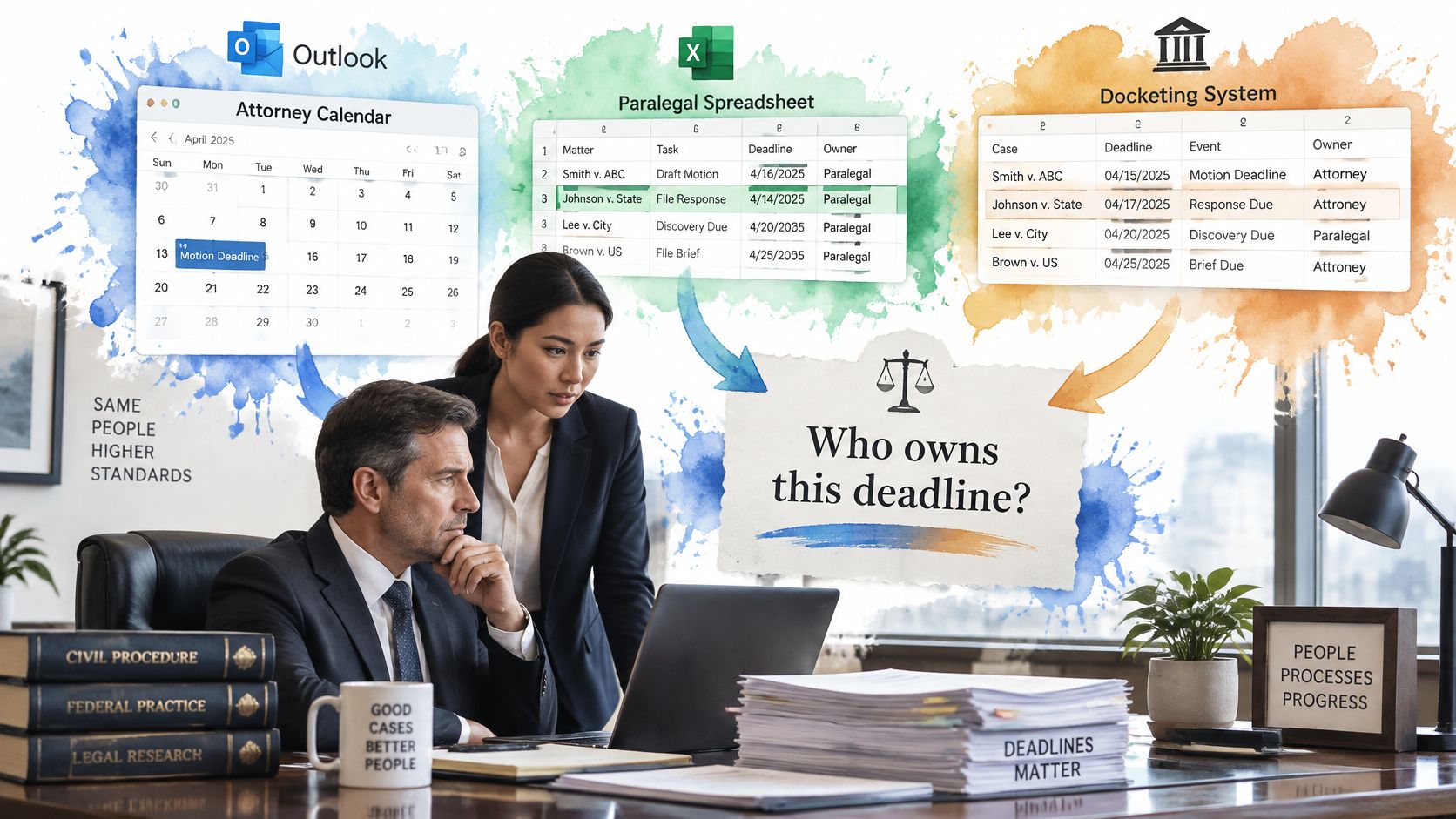
Three layers that stop the drift
One matter record. Events and tasks live on the matter, not in a personal calendar. Personal calendars are copies.
Synchronization. Changes on the matter push out to every calendar the team opens. We sync those changes to Outlook, with reminders for the people on the matter. A date edited in one place should not wait overnight to appear in another.
More than one reminder path. Email plus a dashboard alert beats a single popup. Incomplete tasks should escalate to a manager, not remain on a departed lawyer's calendar.
Say an attorney leaves mid-case on a Thursday. A docketing manager reassigns every event, appointment, and task to a successor across one matter or several, and those changes sync to subscriber calendars. The successor should not rebuild the file from forwarded invites.
Assistants can manage an attorney's calendar and keep their own. They can create, change, and assign tasks, and they can enter time for the attorney. The firm still has to decide who approves time entries. Delegation of entry is not the same as authority to bill.
Name one calendar owner for each active matter, and write that name on the matter record.
If two people "share" the calendar, neither person owns a missed date.
Moving a Document From Intake to Archive
A clean file is a sequence, not a folder dump. Skip a step and the later archive cannot prove what was filed, or who was allowed to see it.
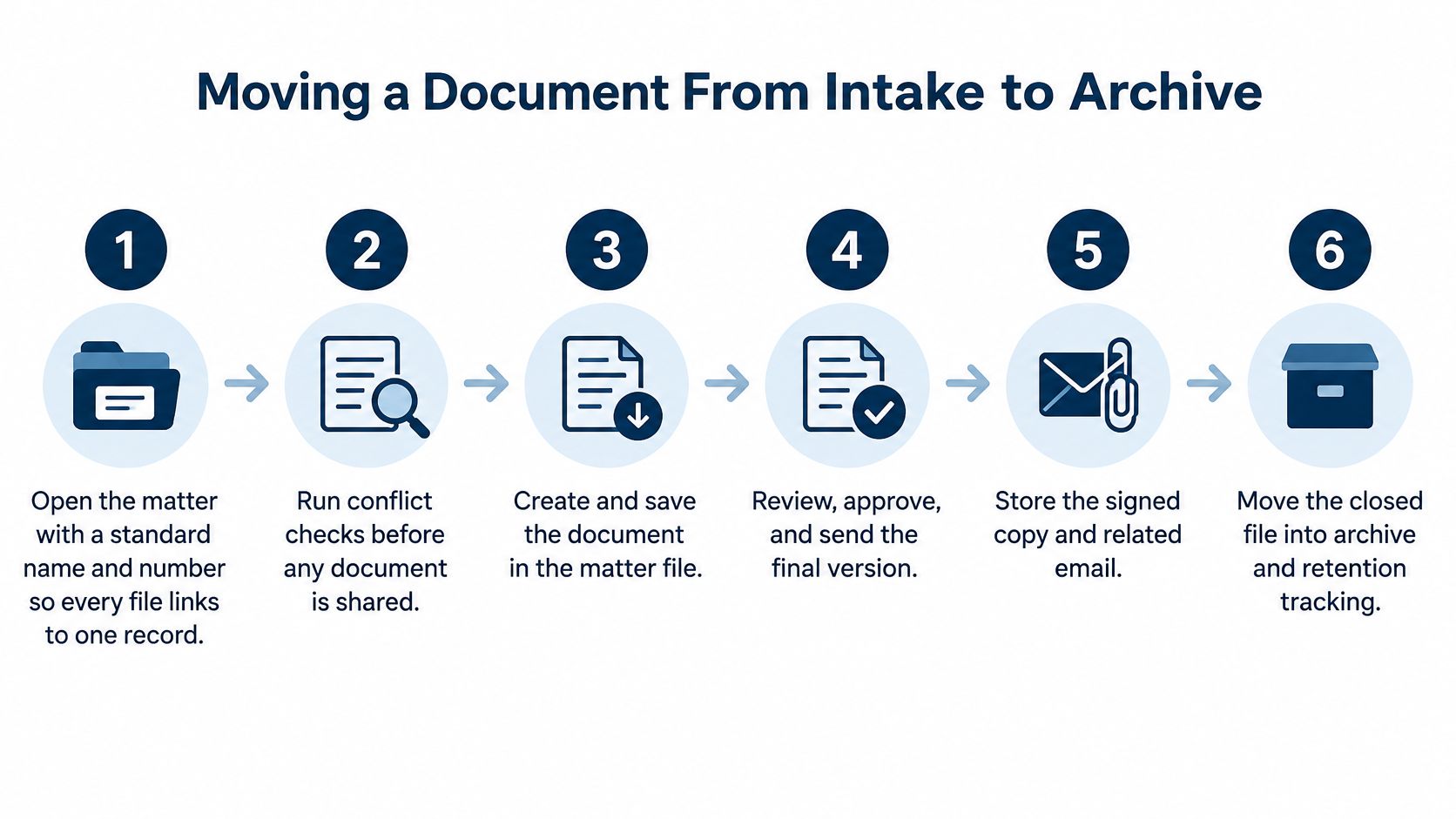
- Open the matter with a standard name and number. Every later file has to point at one record. Free-text names create twins.
- Run conflict checks before any document reaches a client workspace. ABA Model Rule 1.7 and the imputation rules in Rule 1.10 are the usual starting point, along with your jurisdiction's versions. A workspace opened too early shares a file the firm should never have opened.
- Save the file in the document system, inside the matter workspace. Use iManage or NetDocuments. A personal drive is not a workspace. Our iManage connection shows workspaces, links documents to events and tasks, and honors both workspace-level and document-level permissions.
- Set permissions, and confirm ethical walls where a conflict applies. Workspace rights and document rights are not the same switch. A wall that exists only in a memo does not stop a search result.
- Use version control. Two people editing one draft at the same time produce a filing nobody can reconstruct. Check out the working copy, or lock it.
- Link the filed document to the related event or task. A motion should sit next to its response deadline. The calendar then shows the paper and the due date together.
- At closing, apply the retention schedule and archive the matter. Many states follow a records rule in the spirit of ABA Model Rule 1.15 and local file-retention opinions. Write the destruction or archive date on the matter before the team forgets the file exists.
The slip that breaks the chain
An email attachment saved as a loose copy outside the system is the usual failure. The firm loses version history, and the official workspace holds an older draft. At closing, a clean matter folder has one workspace, permission history, the filed versions, the linked dates, and a retention date. Nothing important should still sit in a mailbox.
Security Controls Mapped to Client Data Risk
Security is an ongoing program, not a product you install and forget. The American Bar Association's 2024 Legal Technology Survey reported that 60% of firms had formal cybersecurity policies, while phishing and ransomware remained major threats. A written policy does not close an open account.
NIST Cybersecurity Framework 2.0 sorts the work into six functions: Govern, Identify, Protect, Detect, Respond, and Recover. It is technology-neutral, so the same functions cover email, document management, practice systems, and the links between them.
| NIST function | Law office control | Evidence to keep |
|---|---|---|
| Govern | Written security policy with a named owner | Policy signed by the managing partner and reviewed each year |
| Identify | Map where client data lives and which integrations touch it | Inventory of repositories, integrations, and access paths |
| Protect | Multifactor authentication, encryption, least-privilege access | Access lists by matter, MFA settings, encryption reports |
| Detect | Audit log review and access anomaly alerts | Monthly log review notes and flagged events |
| Respond | Incident plan with named contacts for IT, counsel, and the insurer | Contact list and tabletop exercise record |
| Recover | Tested backups and restore drills | Quarterly restore test of one matter and the result |
Controls you can turn on this week
Put multifactor authentication on email and remote access. Encrypt cloud repositories. Give a paralegal least-privilege access to assigned matters only. Keep event-level audit logs, and read them. On the day someone leaves, remove access the same day. A stale login is an open door with a familiar name on it.
Central identity and audit controls cut the number of unmanaged access paths. Tested backups limit how long ransomware can hold the firm. ABA Model Rule 1.1, comment 8, expects lawyers to stay current on the benefits and risks of technology. Model Rule 1.6(c) requires reasonable efforts to prevent unauthorized disclosure of client information. Reasonable effort is a restore you have run, not a certificate in a drawer.
Restore one matter from backup each quarter, review privileged-access logs on a set schedule, and write down the result.
The same care applies to files that leave the system. Teams that send contracts or staff records as PDFs should treat protecting contracts and employee records as part of the handoff, with permissions that match the matter wall. Our own security controls sit on the matter record: ethical walls, role-based access, and audit logs, not on a side spreadsheet.
Where AI Fits Safely in Daily Legal Work
A legal AI tool is not a final source. In a Stanford RegLab and HAI study of more than 200 open-ended legal queries, specialized legal research systems still produced incorrect information at rates exceeding 17% for Lexis+ AI and Ask Practical Law AI and exceeding 34% for Westlaw AI-Assisted Research, as reported by Stanford HAI. A lawyer who pastes that output into a brief is gambling with the citation.
A separate Stanford benchmark found that standard retrieval-augmented generation reached about 70% accuracy on Boolean statutory tasks, while a specialized approach reached 83%. Commercial tools in that test scored 58% and 64%. Retrieval design changes the score. So the firm should test tools on its own matters, using accuracy, bad citations, omissions, and how often a person has to step in.
| Task | Suitability | Required check |
|---|---|---|
| Summarizing user-supplied documents | Good fit | Spot-check the summary against the source pages |
| Extracting dates, parties, and amounts | Good fit | Compare each extracted field with the original document |
| Proposing research leads | Conditional | Verify every citation in the primary source before use |
| Drafting legal conclusions without citations | Poor fit | Attorney rewrite and full citation check |
| Calculating court deadlines | Poor fit | Rule-based calendar result confirmed by a second person |
| Interpreting jurisdiction-specific rules | Poor fit | Attorney review against the current local rules |
The workflow rule
The tool should show source passages, keep query and output logs, and require attorney review before anything reaches a filing, a client letter, or a matter record. Bounded tasks are the defensible ones. Summaries of documents the user supplied. Structured facts pulled from those pages. Research leads that still get opened in the reporter.
AI should not calculate court deadlines, and it should not interpret jurisdiction-specific rules, without a human check against a rule-based calendar and the current local rules. Start where the sources sit on the screen next to the output. If the passage is not visible, do not use the sentence.
Choose Your First Step and Measure the Result
The ABA's 2025 Legal Industry Report found that 31% of respondents personally used generative AI at work, up from 27% the prior year. Adoption was approximately 39% at firms with 51 or more lawyers and about 20% at firms with 50 or fewer. The gap points to a practical issue: technology adoption depends on workflow, training, and governance as well as the tool. Smaller offices experimenting with public AI services need clear rules for permitted use and a defined place to store work product.

Start with one workflow and make its ownership visible. For deadline intake, record who receives the trigger, who calculates the date, and who confirms it. Then name one person accountable for the pilot and set approved-use rules that distinguish tasks staff may perform from decisions requiring human review.
Train each role on its own responsibilities. Clerks, assistants, and attorneys handle different parts of the process, so a single generic training session may leave gaps. Over 90 days, track turnaround time, rework, and missed handoffs. Hours saved matter, but so does knowing who owns the next step.
A solo or small practice can use repeatable matter templates, shared calendars, and reminders without desktop software. Before choosing a system, account for everyone who accesses it or receives calendar synchronization, including attorneys, law clerks, legal assistants, and administrative staff. Confirm which courts and rule sets are covered, since availability varies by court and jurisdiction, particularly in Canada.
Legal workflow automation works best when tied to a defined operational problem. Choose one point of friction, set a measure for improvement, and test the workflow before adding another system.
MatterAlert centralizes deadlines, tasks, and calendar synchronization around matter records, helping teams keep the owner of each date clear. Firms evaluating law office technology can start with the workflow that creates the greatest risk or rework, then confirm that the system supports the courts and rule sets they use. Visit MatterAlert to review its capabilities.